Welcome to TrainGrid
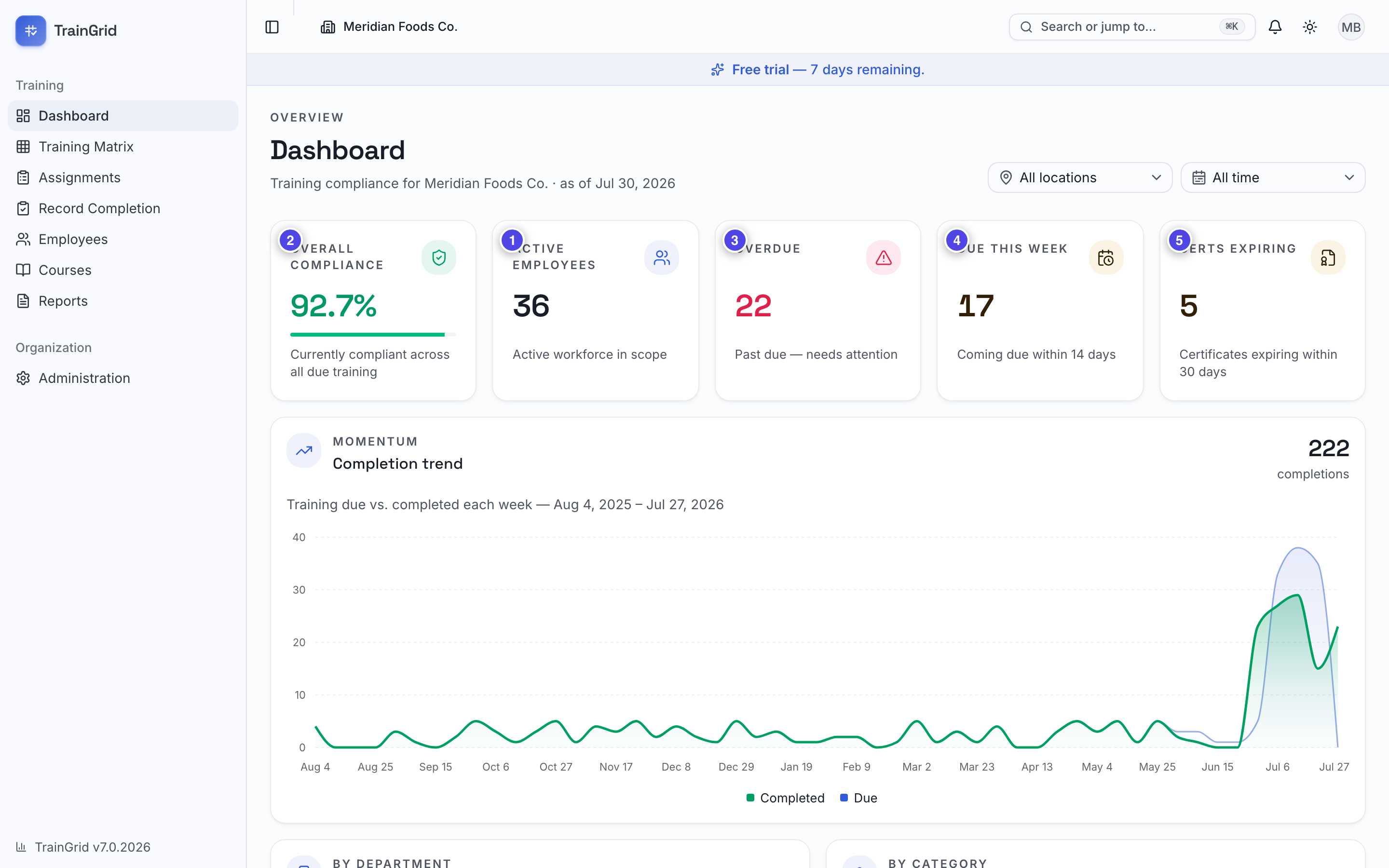
TrainGrid is your single source of truth for workplace training and compliance. It tracks who has been trained, who is coming due, and who is overdue; it watches certificate expiry dates so nothing lapses unnoticed; and it turns all of that into audit-ready proof you can print or export the moment an inspector or auditor asks. Because it is built for organizations that run more than one site, every location, department, and employee lives in one place — so you always know, at a glance, exactly where your compliance stands across the whole operation.
The five roles at a glance
Everyone in TrainGrid has a role that sets what they can see and do. There are five:
- Administrator — Full control of the workspace, including billing and organization settings. Usually the person who created the account.
- Manager — Everything an Administrator can do, except billing. Your day-to-day managers.
- Training Coordinator — Runs the training program: manages employees, courses, assignments, completions, and reports.
- Supervisor — Views and records training completions for the location(s) they're responsible for — nothing outside their sites.
- Viewer (auditor) — Read-only access for audits and inspections. Can see and export, but never change anything.
Note: The full breakdown of exactly what each role can do is in Roles & Permissions at a glance. For now, this is just to help you find where you fit.
Signing in
Sign in to your workspace
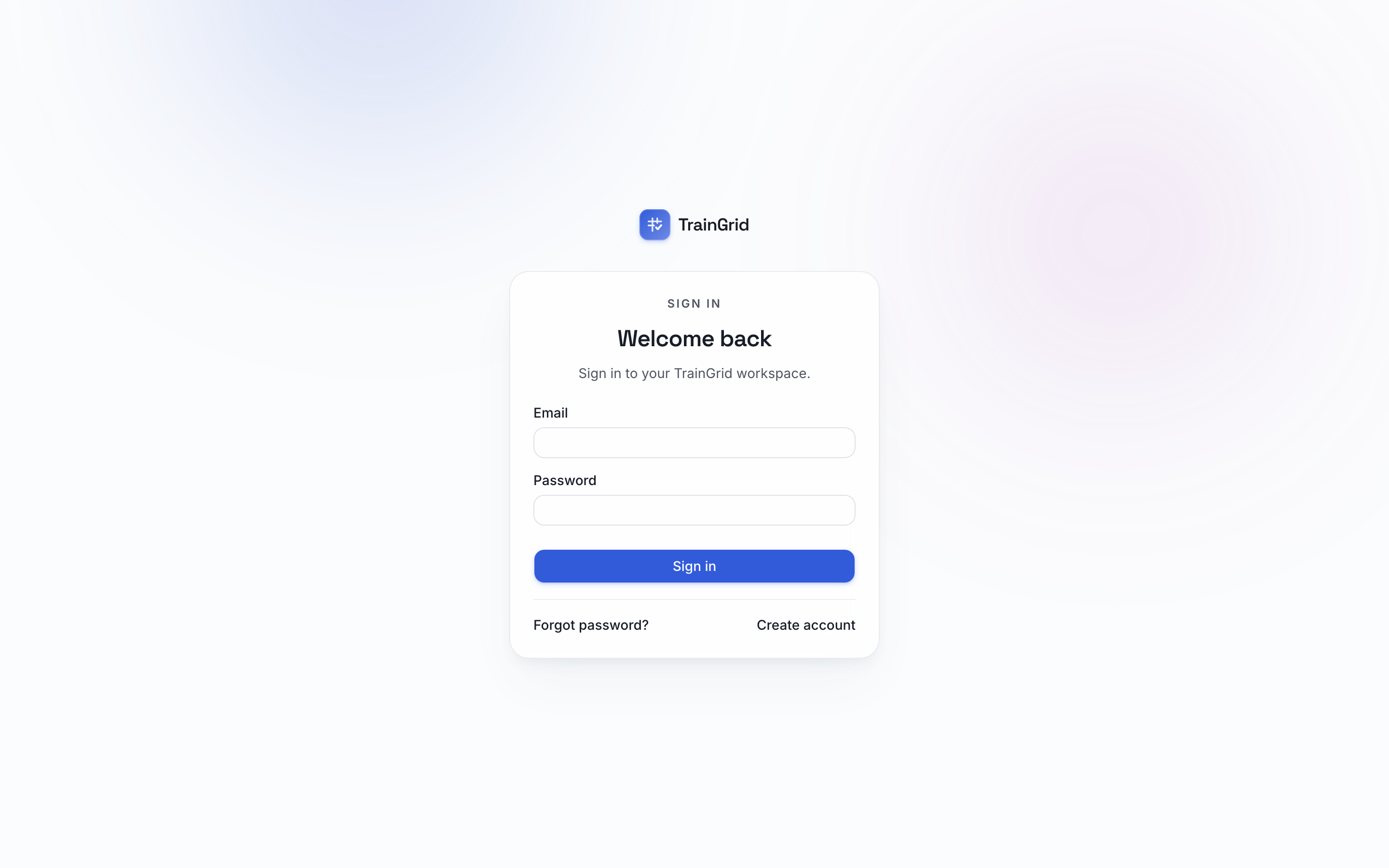
- Go to https://traingrid.app in your web browser.
- On the Welcome back screen, enter your Email and Password.
- Select Sign in. You'll land on your Dashboard.
Tip: Bookmark https://traingrid.app so you can get back in one click.
Sign in with Microsoft
Where Microsoft sign-in has been switched on for your TrainGrid environment, the Welcome back screen shows a Continue with Microsoft button above the email and password fields, with an or continue with email rule between them. The same button appears on invitation links, both staff invitations and employee portal invitations, above Create account and Sign in, with an or use email rule.
- Select Continue with Microsoft. Microsoft always shows its account picker; choose the work account whose email address matches your TrainGrid invitation or account.
- Sign in to Microsoft as you normally would. You return to TrainGrid signed in: from an invitation link you land back on that invitation to accept it; from the sign-in page you land at the page you were heading to.
Note: Microsoft sign-in is a way to sign in, not a way to be added. You must already hold a TrainGrid invitation (or an activated account) for the same email address; TrainGrid does not create accounts from your directory, copy users from it, or keep anything in step with it. If you have not been invited, the sign-in page says so: "This Microsoft account hasn't been invited to a TrainGrid workspace yet. Ask your administrator for an invitation to this email address, then use Continue with Microsoft from the invitation link." If the sign-in did not finish, it says "Microsoft sign-in didn't complete. Try again, or sign in with your email and password."
Reset a forgotten password
- On the sign-in screen, select Forgot password?
- On the Reset your password screen, enter your Email and select Send reset link.
- Check your inbox for the secure link and open it.
- On the Choose a new password screen, enter a new password (at least 8 characters) and select Update password. You'll be signed straight in.
Note: For your security, TrainGrid always says a link is "on its way" whether or not the email is registered, so the message doesn't reveal who has an account. If the link ever says it's invalid or expired, just request a new one from Forgot password?
Creating your organization (first-time setup)
The very first time you sign up, TrainGrid walks you through a single setup step to create your organization. (If you were invited by a colleague, you'll join their organization instead and skip this.)
Set up your organization
On the Set up your organization screen you'll provide three things:
- Organization name — your company's name (for example, Acme Manufacturing). This is required.
- Primary location (optional) — the first site where training happens (for example, Main Plant). You can add more locations later, so it's fine to start with one.
- Timezone — TrainGrid detects your browser's timezone automatically. Change it if your site is somewhere else. This matters: it's what TrainGrid uses to calculate due dates and decide what counts as overdue.
Then select Create organization.
That's it — there's only one step. You'll be taken straight to your Dashboard, ready to add your team, your employees, and your courses next.