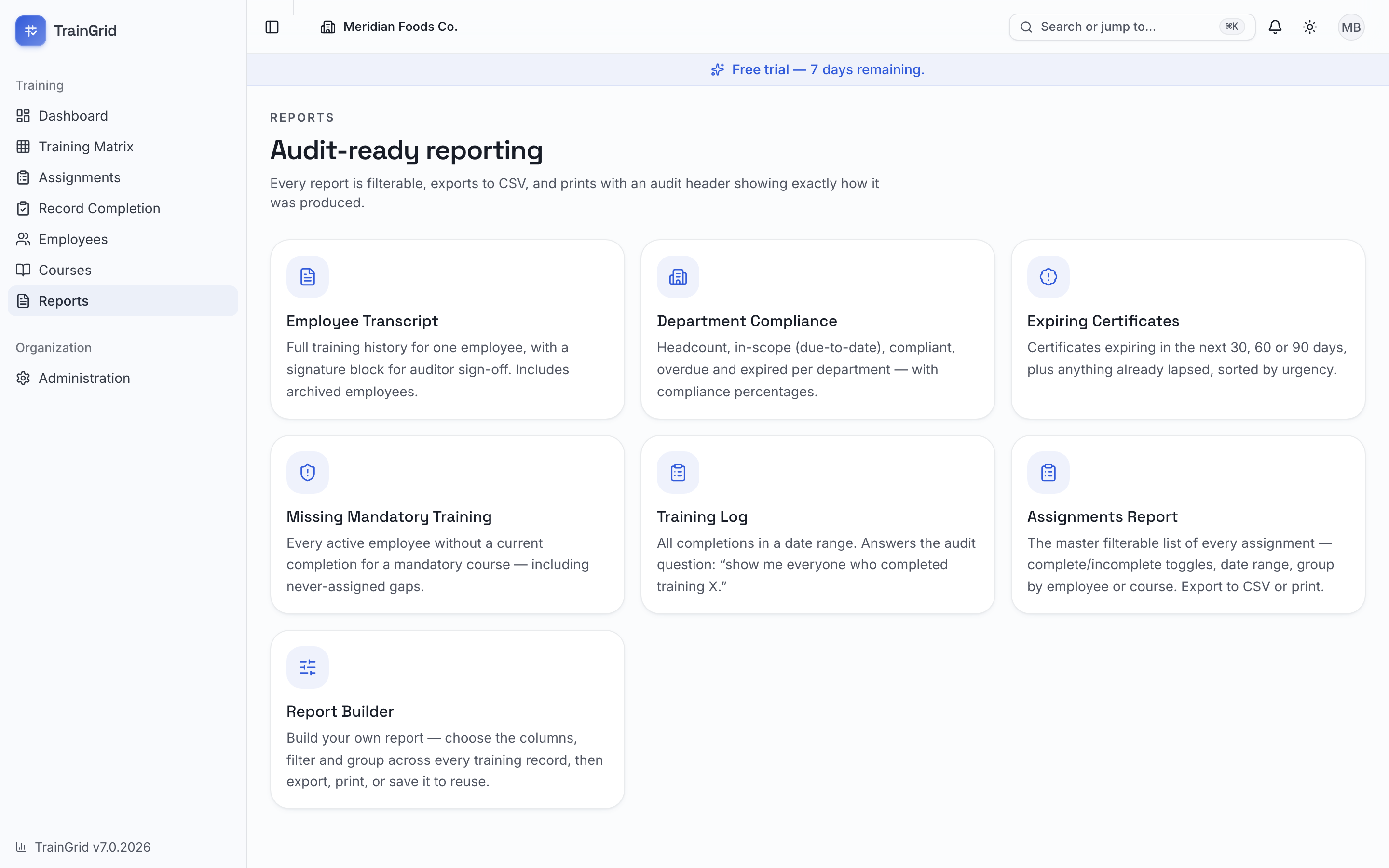
The Reports hub is where you produce audit-ready answers. Open it from the main navigation to see every report as a card — select one to open it.
A few things are true of every report:
- Filter it to narrow the results to exactly what you need.
- Export CSV to download the current view as a spreadsheet.
- Print to produce a clean, landscape document that starts with an audit header — your organization name and logo, the report title, the filters you applied, and the generated timestamp — so anyone reading it knows precisely how it was produced.
Note: What each report can show respects your role and location. A supervisor scoped to one site sees that site's people and records; an administrator or manager sees the whole organization.
Employee Transcript
Answers: "Show me everything this one person has ever done."
This is the report you hand an auditor for an individual. Pick any employee — including archived staff — and you'll get their identity block (department, position, location, shift, supervisor, hire date) followed by their complete training history: course, category, status, due date, completion date, grade, instructor, who recorded it, and certificate expiry. A summary line tallies completed, pending, overdue, expired, and waived records.
- On the report, use the employee search to find and select a person.
- Review their full history on screen.
- Select Print to produce the transcript — the printed version ends with an Auditor sign-off block with lines for a reviewer's name, signature, and date.
Department Compliance
Answers: "How is each department doing?"
A single table with one row per department: active Headcount, training In scope (what has come due and must be current), Compliant, Overdue, Expired, Failed, and a Compliance percentage, plus a grand-total row. Percentages are colored green (healthy), amber (watch), and red (at risk). Expired certificates and failed training both count as non-compliant, so the numbers reconcile with the dashboard.
- Optionally use the location filter to focus on one site.
- Read down the Compliance column to spot the departments that need attention.
Competency Status
Answers: "Who is trained, who is competent, and who is actually qualified?"
Every competency requirement in the organization, with where each one stands. The lens picker switches between All competency requirements, Trained but not qualified — the list to check before an audit — and Reassessment scheduled. Filter by location. The heading follows the view you pick — Competency Status, Qualification Gaps or Reassessments Due — so a printed copy names the question it answers, and the view is written into the audit header alongside it. The outcomes themselves, and how qualification is worked out from them, are explained under Competency Assessments.
Expiring Certificates
Answers: "Whose certifications are about to lapse?"
Current certificates for active employees, sorted by urgency, so you can renew before anything expires.
- Choose a window — 30, 60, or 90 days.
- Leave Include already expired on to also surface certificates that have already lapsed (turn it off to see only upcoming ones).
Missing Mandatory Training
Answers: "Who is missing a required course?"
Every active employee without a current completion for a mandatory course — including people who were never assigned it at all, which is the gap that's easiest to miss.
- Optionally filter by department and/or a specific mandatory course.
- Review the flagged employees and assign the missing training.
Note: This report only appears with results once you've marked at least one course as mandatory in your course catalog. If none are marked, it will point you there.
Workforce Competency
Answers: "Is each person actually competent for the job they hold?"
The other reports ask about courses. This one asks about roles. Under Administration → Positions you declare which courses a position requires; this report then checks everyone holding those positions against that list and names the gaps. It is the report to run when someone asks whether your line operators are qualified to be on the line.
One row per employee: Employee, Position, Department, how many Requirements met (for example 4 of 6), and a Status — one of:
- Competent for role — every declared requirement is met.
- Reassessment due — otherwise met, but at least one competency has a reassessment that has come due. A reassessment scheduled for a future date leaves the employee competent for the role until the date arrives.
- Not competent for role — at least one requirement is not met. The missing courses are listed underneath the status.
A requirement counts as met when the person holds a current completion that is qualified — competency and certificate included. A waived requirement counts as met, because waiving it is a deliberate decision that it doesn't apply. Failed or lapsed training, missing assessments and courses that were never assigned are all gaps.
- Filter by position and/or location, or leave both open for the whole workforce.
- Work down the Not competent for role rows and assign what's missing.
Note: The report only has something to say once at least one position declares required courses. If none do, it tells you so and points you at Administration → Positions. Only active employees are included.
Training Hours
Answers: "How many hours of training did each person receive this year?"
The number a management review or a customer audit asks for. It totals the Hours recorded against completions in a period, and shows the records behind every total rather than just the total.
- Set From and To — it opens on the current year to date.
- Optionally narrow by department or a single employee.
- Switch between By employee and By department with the view picker.
By employee gives one row per person — Records and Training hours — and clicking a name expands the individual records behind the number, each with its date, course, source and hours. By department compares departments: Employees, Training hours and Avg hours / employee. Either way, a summary line at the top gives the totals and the internal, external and online split.
Note: Hours are optional on a completion, so some records carry none — anything recorded before hours tracking existed, or entered without them. Those count as zero, and the report says on screen how many records that applies to, so a low total is never mistaken for a complete one. Add the missing hours through the record's Edit completion form.
Internal vs External Training
Answers: "How much of our training do we deliver ourselves, and how much do we buy in?"
A single comparison table: the metrics down the side, Internal, External, Online and Total across the top. It's the budget and dependency picture — how much of your programme rests on outside providers.
The metrics are Employees trained (distinct people, so the total is the distinct count overall rather than the sum of the row), Training records, Competencies assessed, and Certificates expiring (next 30 days) — that last one counted from today regardless of the date range. If any completions in the period fell below their passing grade, a Failed records row appears too; those are excluded from the rows above it.
- Set the From and To dates, and optionally a location.
- Read across each row to see where that kind of training comes from.
A record's source is its own override where one was set, otherwise the course's classification — the same rule every other screen uses, so this report can't disagree with the matrix or the assignment list.
Training Log
Answers: "Show me everyone who completed training X between these dates."
This is the classic audit question. It lists every completion recorded within a date range.
- Set the From and To dates (it opens on the last 30 days).
- Optionally filter by course and/or department to narrow to a specific session.
Assignments Report
Answers: "Show me the master list, filtered however I like."
This opens the full Assignments screen — every assignment in your organization. Toggle between complete and incomplete, set a date range, and group by employee or course. Like the reports, it exports to CSV and prints. Use it when you want the raw, filterable record rather than a summary.
Report Builder
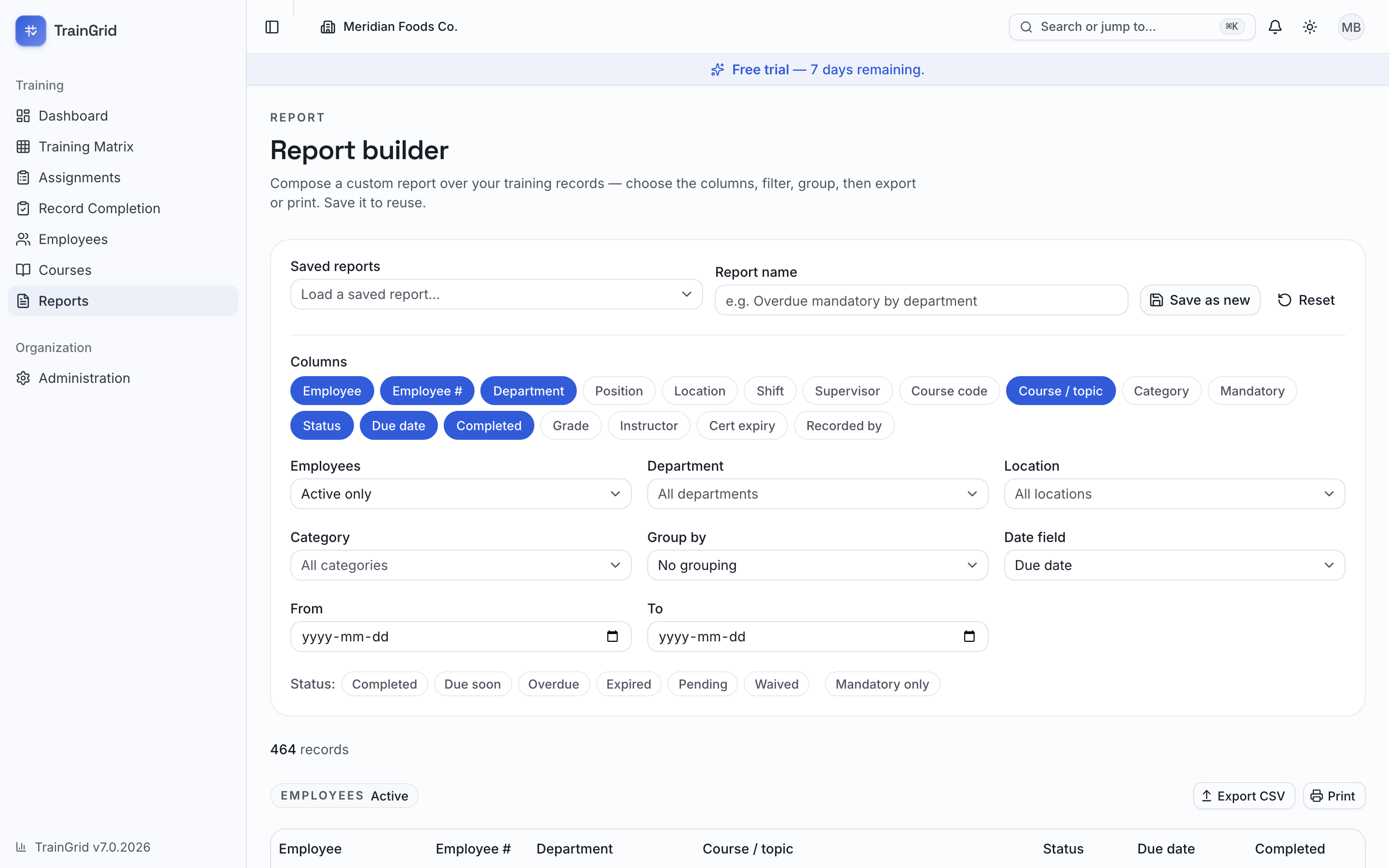
Answers: "None of the standard reports is quite right — let me build my own."
The Report builder lets you compose a custom report over every training record, then save it to reuse.
- Under Columns, select the fields you want (employee, department, location, course, category, status, dates, grade, instructor, and more) — selected columns are highlighted.
- Apply Filters: employee status (active / archived / all), department, location, category, a date range on either the Due date or Completed date, one or more Status chips, and Mandatory only.
- Optionally choose Group by to break the results into sections (for example, by department or status), each with its own count.
- The results update live and show a record count. When the result set is very large it caps at the first 10,000 rows — narrow your filters for a complete export.
- Export CSV or Print the report.
- To reuse it, type a name and select Save as new. Later, pick it from Load a saved report…, then Update it or Delete it.
Note: You can always manage the reports you created. Administrators and Managers can also manage reports saved by others; everyone else can load and run any saved report but only change their own. Select Reset at any time to clear your choices and start over.