Courses are the foundation of TrainGrid. Everything else — assignments, the compliance matrix, certificates and reports — is built on the courses in your catalog. A course defines what the training is and how it behaves: whether it repeats, whether it issues a certificate that expires, whether it counts toward compliance.
Note: Creating and editing courses is available to Administrators and Managers.
The course catalog
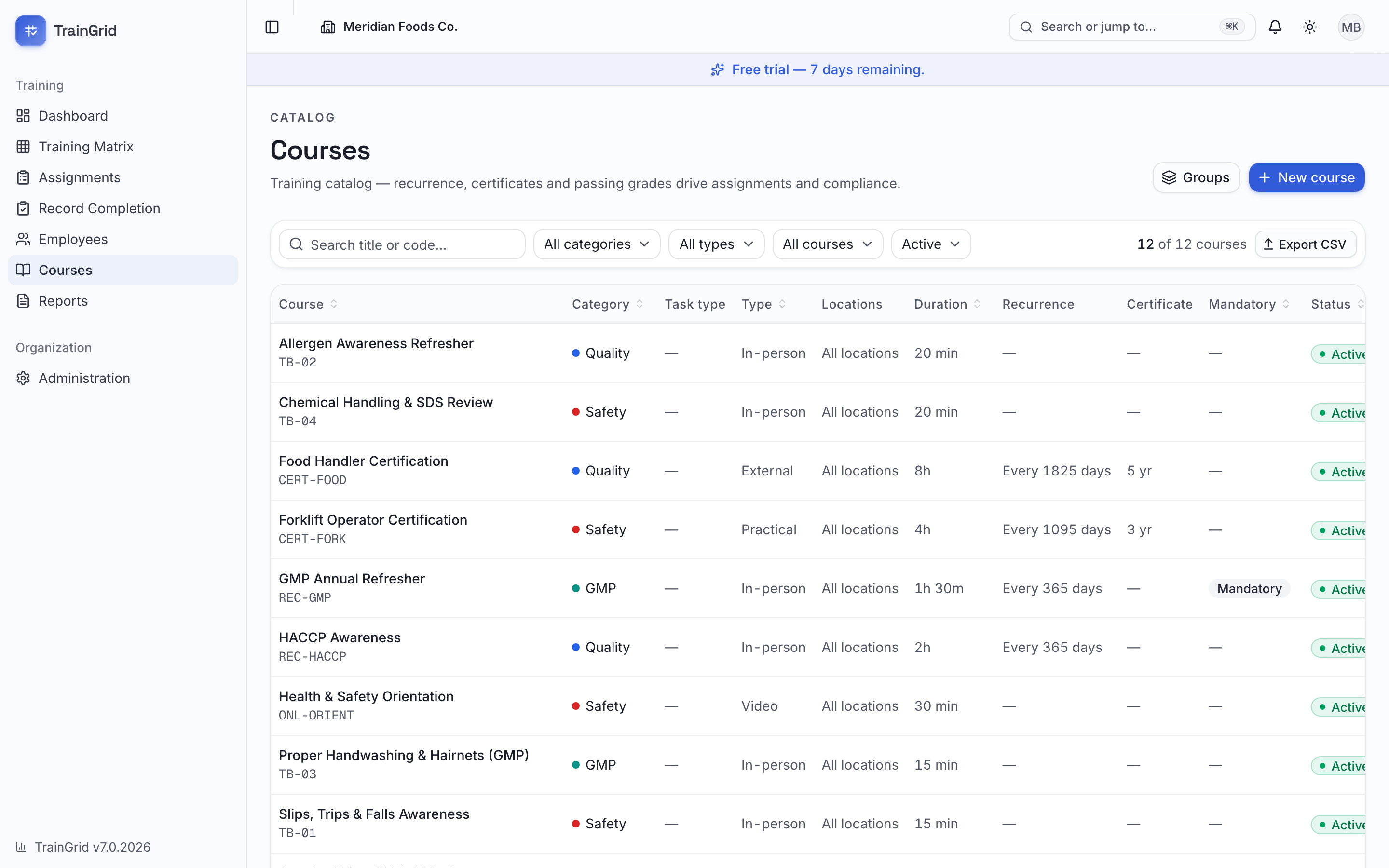
Open Courses from the sidebar to see your catalog. Each row shows the course's title and code, plus Category, Type, Duration, Recurrence, Certificate validity, whether it's Mandatory, its Status, and the default Instructor. Click any row to open the course's detail page.
The toolbar lets you narrow the catalog:
- Search title or code — filter as you type.
- All categories — show one category, or Uncategorized.
- All types — filter by delivery type (in-person, online, and so on).
- All courses — switch to Mandatory only or Optional only.
- Status — Active, Inactive, Archived versions, or All statuses. Active courses show by default. Inactive means a current course that somebody switched off. Archived versions is separate: it holds the superseded versions of courses that have since been revised. Those stay searchable and readable so an auditor can see what was taught at the time, but they are read-only and are never offered for new assignments.
Click Clear to reset all filters, or Export CSV to download the currently filtered list. A count on the right tells you how many courses match ("X of Y courses").
Starting from scratch: Add starter courses
If your catalog is empty, TrainGrid offers a head start. On a brand-new organization's Courses page you'll see two choices:
- Add starter courses — instantly loads a set of common training courses so you have something to build on. Edit or remove any that don't fit your operation.
- New course — build your first course by hand.
Tip: Even if the starter set isn't a perfect match, it's usually faster to load it and tweak than to start from a blank page.
Creating a course
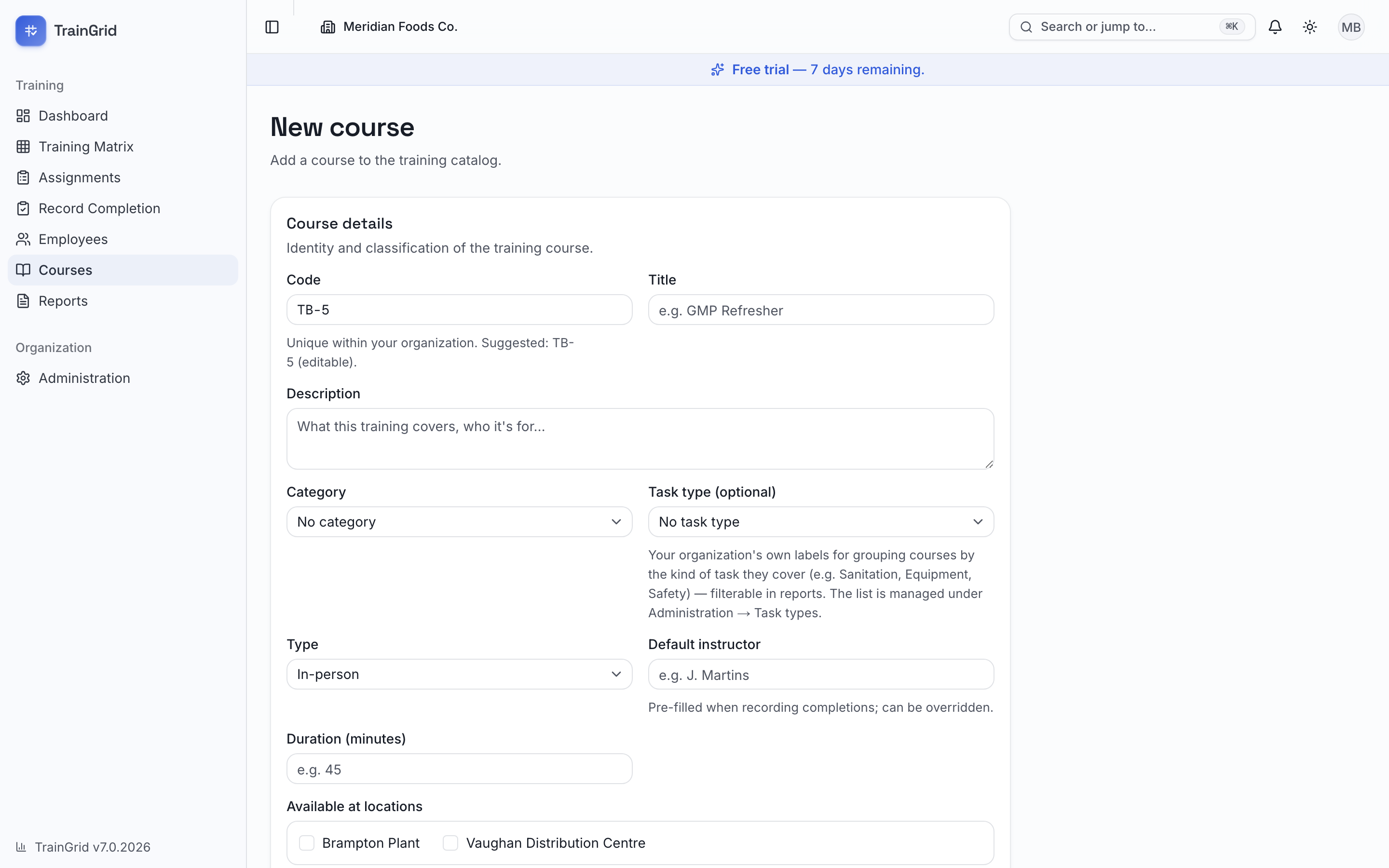
- On the Courses page, click New course.
- Fill in the Course details section:
- Code — a short identifier, unique within your organization (for example,
TR-1001). TrainGrid suggests one automatically, which you can keep or change. - Title — the course name people will recognize (for example, "GMP Refresher").
- Description — what the training covers and who it's for. Optional but recommended.
- Category — group the course (Safety, Quality, and so on), or leave it as No category.
- Type — how the training is delivered: In-person, Online, Video, External or Practical.
- Default instructor — pre-filled when someone records a completion; it can always be overridden at that point. Optional.
- Duration (minutes) — how long the course takes. Optional.
- Set the Scheduling & certificates section (each of the toggles below reveals more options when turned on):
- Repeats — turn this on for training that must be redone on a cycle. Then set Repeat every (days), either by typing a number or using the Weekly, Monthly, Quarterly or Annual shortcut buttons. When someone completes the course, TrainGrid automatically schedules the next assignment this many days later. Leave Repeats off for one-time training that never needs redoing.
- Requires certificate — turn this on if completing the course issues a certificate that expires. Then set Valid for (days), either by typing a number or using the 1 yr, 2 yr, 3 yr or 5 yr shortcuts. The certificate expires this many days after completion, and TrainGrid tracks the countdown on the employee's profile and in reports. Changing Valid for (days) later applies to certificates issued from that point on; certificates already issued keep the validity they were issued under, so nobody's expiry date moves under an auditor's feet. To put someone on a new validity period, record the training again.
- Passing grade (%) — optional. If you set one, a completion recorded below it is still kept, but it shows as Failed: it does not count as compliant on the dashboard, in the matrix or in any report, and it cannot support a competency qualification. A grade exactly equal to the passing mark passes. A course with no passing grade — or a completion recorded without a grade — can never read as Failed.
- Mandatory course — turn this on for training required of everyone. Mandatory courses count toward your compliance percentage for every employee and drive the missing-mandatory-training report.
- Click Create course. TrainGrid saves it and opens the course detail page. If your workspace has no assignments yet and your role can assign training, TrainGrid opens Assign training with the new course already selected instead. This shortcut is available only to members with access to all workspace locations.
Note: When a course both Repeats and Requires certificate, the next recurring assignment is scheduled for the certificate's expiry date (completion date + validity) rather than the plain repeat interval — so retraining lines up exactly with when the certificate lapses.
The course detail page
The detail page is the home for a single course. At the top you'll see the title, code, category, type, and badges for Mandatory and Active/Inactive status, plus Edit, Copy, Deactivate (or Reactivate) and, in some cases, Delete buttons. Assign this course is shown when you can assign training and the course is the current, active version. Your role must also manage courses, and the course must be available at your locations.
The page then shows:
- Assignment stats — four tiles: Total assignments, Completed, Pending, and Needs attention (overdue, expired, and failed records together), so you can see the health of this course at a glance.
- Upcoming sessions: the next three scheduled sessions for this course, each linking to its session page, with a Schedule session button for anyone who can assign training, while the course is active and current. When nothing is scheduled it reads "No instructor-led session is scheduled for this course." (See Training Calendar & Session Booking.)
- Recent assignment activity — the latest people assigned this course, with their department, due date, status, completion date and grade.
- Properties — the course's full configuration (code, category, type, duration, recurrence, certificate validity, passing grade, mandatory, default instructor, status, and created/updated dates) in one reference list. Where a version was created through the New version flow, it also shows Version created by, Approved by and the approval date.
- Version history — shown once a course has more than one version: each version newest first, with its revision note, who created and approved it, and whether it is Current, a Draft or Superseded. Click any version to open it.
- Materials & SOPs — attach the talk sheet, SOP, handout or translated versions for this course so they're one click away. Click Add material to upload a file; click a file's name to open it; use the trash icon to remove one.
Copying a course
Sometimes the same training has to exist as a separate course: the same content under another code for a second programme or site, or the starting point for a course that will diverge. Copy does that without touching the original. On the course detail page, click Copy. The dialog Copy this course explains that it "Creates a new, independent course from the current version" of the course and asks you to "Pick a code no course in your catalog has ever used."
- Accept or change the suggested Course code (up to 30 characters) and the Title (pre-filled with the original's title, up to 200 characters).
- Read the two lines in the dialog. Copied: "settings, locations, tags, topics, materials, competency settings." Not copied: "training records, versions, task-group membership." (Task-group membership means the course groups the original belongs to.)
- Click Create copy. A toast confirms the new course was created as a copy of the original, and its detail page opens.
Note: The copy is a brand-new course: version 1.0, active, with no assignments and no version history, and not linked to the original in any way. Its code must be unused anywhere in your catalog, including by superseded (archived) versions, so a code that once belonged to an old version cannot be reused; if the code is taken you see "Course code "X" is already in use. Pick another code." under the field. Copy is offered on the current version only (not on a draft or an archived version) and needs the Manage courses permission. Materials on the copy point at the same uploaded files as the original.
Tip: Copy is for a genuinely separate course. To revise what people are trained on, publish a new version so records keep pointing at what was taught; to run the existing course on a date, schedule a session; to make people take it again, assign it with a new due date.
Versions and revisions
Training documents get revised, and an auditor will ask what people were actually taught at the time. So rather than editing a course in place and quietly rewriting history, you publish a new version of it: completed records keep pointing at the version they were completed against.
On the course detail page, click New version. Give it a Version number (2.0, say), an optional Effective date, and a Change / revision description — what changed, and why. The new version copies the current definition, so you only edit what differs. Then there are three decisions, and the dialog counts how many active employees completed a previous version before you commit to any of them:
- This revision requires retraining — tick this when the change is significant enough that people already trained must sit the course again. Everyone who completed an earlier version is then assigned the new one, by the Retraining due date you set. Left unticked, their existing training stays valid.
- This revision affects competency or qualification — offered when the course requires a competency assessment. Tick it, set a Reassessment due date, and every trained employee's current record is marked for reassessment. Existing qualifications are kept until each person is actually reassessed — this schedules the work, it doesn't revoke anyone.
- Make it current now — retires the previous version (read-only, kept for audits) and makes this the one that appears in the matrix and the assignment pickers.
Leave Make it current now unticked and the new version is saved as a draft instead. Both due dates, and the competency question, belong to the moment a version actually goes live, so they are asked again — with a fresh count of who is affected — when you activate the draft from the course page.
A retired version moves into the Archived versions bucket of the catalog's status filter. It stays searchable and readable, topics and materials included, but it can't be edited or assigned again.
Editing and archiving a course
To change any of a course's details, click Edit on its detail page, make your changes, and click Save changes.
To retire a course, click Deactivate. Deactivating stops the course from being used for new assignments while keeping all existing assignments and completion history intact — nothing is lost, and you can click Reactivate at any time to bring it back. This is the right choice for almost every course you no longer use, including mandatory ones.
Note: A permanent Delete button appears only for a course that has never had any assignments — a course used by mistake, say. Once a course has any assignment history, deletion is disabled and Deactivate is used instead, so your records stay complete for audits. Deletion is available only to Administrators and cannot be undone; every deletion is written to the audit log. Administrators can also tick several courses in the catalog and click Delete N in the selection bar: the same rules apply to every course selected, nothing is deleted if any one of them is blocked, and the dialog asks for your password first (see "Delete a course" in the Function Reference).