Training Matrix
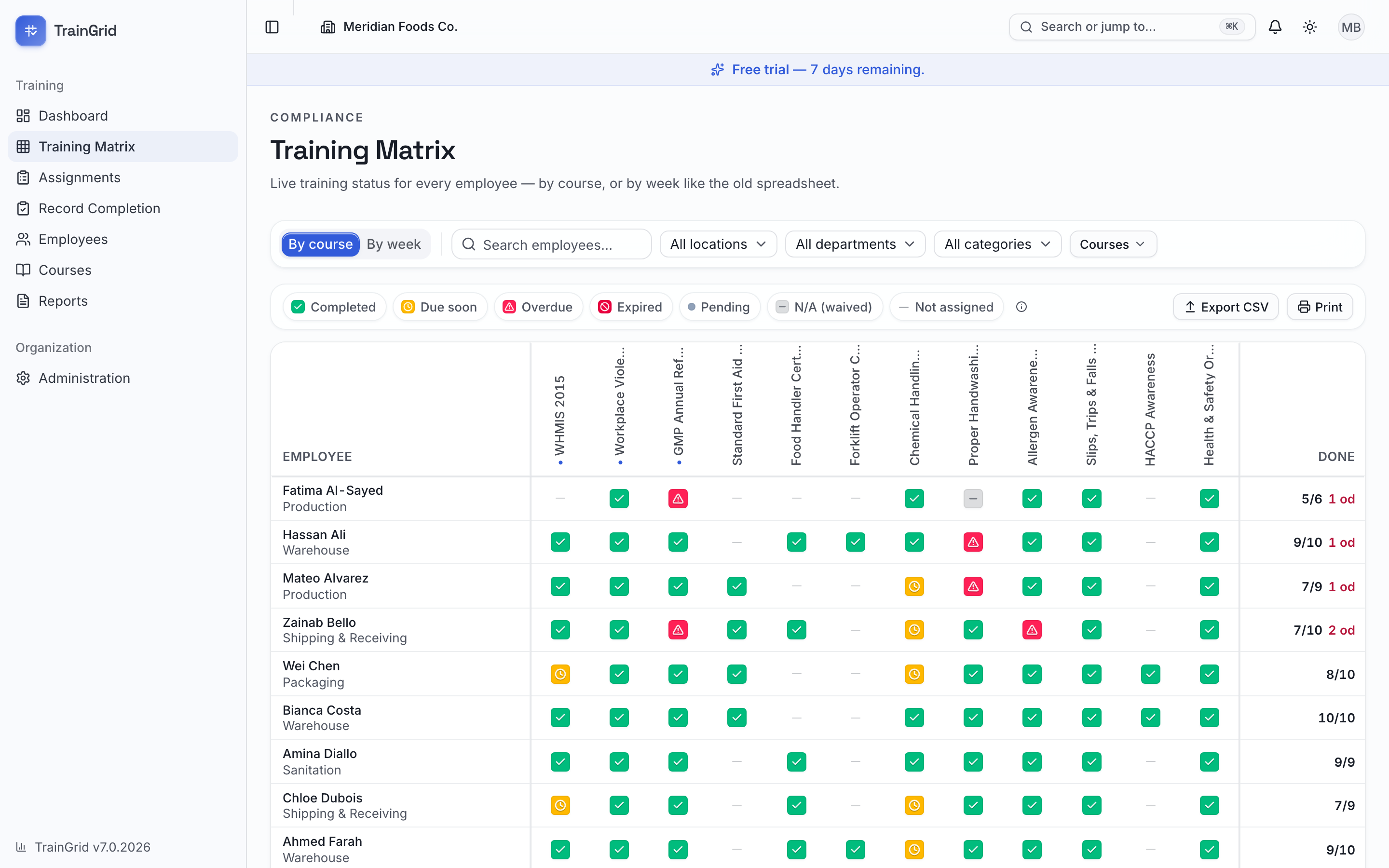
The Training Matrix is your live, at-a-glance grid of who has what training. Every employee is a row; every course (or every week) is a column; and each cell is colour-coded to show status right now — no spreadsheet to maintain, no formulas to update. It's the fastest way to spot a gap, and the report an auditor most wants to see.
Open it from the sidebar under Training Matrix.
Note: The matrix always respects your access. Supervisors and other location-scoped roles see only the employees and sites they're responsible for — the grid, filters and printout are all limited accordingly.
The two views
At the top left, a toggle switches the whole grid between two ways of looking at your training.
Training, Competency and Qualification
In By course mode a second toggle changes what the cells are about. The grid stays the same shape; the question changes:
- Training — the familiar view: completed, due soon, overdue, expired.
- Competency — the assessment outcome for each person: competent, with conditions, needs improvement, not competent, exempt, or not assessed yet.
- Qualification — the answer to “can this person do this job unsupervised?”, worked out from both of the above.
Someone who finished the course but has never been assessed reads Completed under Training and Not qualified under Qualification. That difference is the entire point of the three lenses.
Note: Exports and printouts follow the lens you are looking at, and say which one produced them — a competency print can never be mistaken for a training print.
Course versions and topics on the grid
Each column header carries the course’s current version, and hovering it shows that version’s topics — the agenda — without leaving the grid. Records completed against an older version still sit in the same column: history stays pinned to the version it was delivered under, while the column always reflects the course as it stands today.
Filtering by task type
The task type filter narrows the grid to one kind of activity — toolbox talks, inductions, practical assessments, whatever your organization defines under Administration → Task types. It works in both views, and like every other filter it is named on the printout.
- By course — employees down the side, courses across the top. This is the compliance master grid: one glance tells you every course each person holds and where they stand. Mandatory courses are marked with a dot in the column header. A Done column on the right shows each person's completed-vs-assigned tally, with an overdue count in red when they're behind.
- By week — employees down the side, calendar weeks across the top. This mirrors the old weekly toolbox-talk sheet: each cell shows how many of that week's sessions the person has completed (for example,
2/3). The current week is tagged now; upcoming weeks are shaded and tagged upcoming.
Reading the colour-coded cells
In By course, each cell tells you the status of one course for one person:
- Completed (green) — done and current.
- Due soon (amber) — assigned and coming up.
- Overdue (red) — past its due date and not completed.
- Expired (red) — a certificate that has lapsed. For certificate courses, a fresh retraining assignment is created automatically, so look for a new pending cell in the same column.
- Failed (the darkest red, marked with an ✕) — the course was completed, but below its passing grade. It is deliberately darker than Overdue and Expired: those were once valid or are merely late, whereas this training was never passed. It does not count as compliant.
- Pending (a small grey dot) — assigned, with time still to go.
- N/A (waived) — deliberately marked not applicable for this person.
- Not assigned (a faint dash) — this course was never assigned to this person.
In By week, the same colours describe the whole week's toolbox talks for that person:
- All completed (green), Partially completed (amber), None completed (past) (red), Due, not completed yet (grey), and Nothing due for an empty week.
A colour key sits beneath the toolbar in both views. Every colour is also backed by a small symbol and full text, so the grid stays readable in black-and-white and for colour-blind users.
Opening a cell for detail
Click any cell to open a detail panel on the right.
- In By course, the panel shows the course, the employee, the due date, completion date, grade, certificate expiry, instructor, location and the Source the training came through (Internal, External or Online), plus any notes or waive reason. A grade below the passing mark is called out in place, and the record reads Failed.
- A badge beside the status names the course version the record was earned against, marked Superseded when the course has moved on since — so you can see at a glance that a green cell survives from an older revision.
- If the course requires a competency assessment, a Competency block shows the outcome and the resulting qualification, with the Assessor, the date it was Assessed, and any Reassessment due date.
- View training history opens that employee's History tab, where every record they hold is listed with its own version.
- In By week, clicking a cell opens the same panel. If the week held more than one session, a short list appears first — pick the one you want.
From this panel you can act on the spot:
- If the course is still open and you have permission, click Mark complete, set the Completion date and, optionally, a Grade %, the Hours (this session) and an Instructor, then confirm. Recurring and certificate courses schedule their next occurrence automatically.
- If the cell is Not assigned and you're a coordinator or above, you'll see an Assign this course option — set a Due date and click it to start tracking that course for that person right away.
Filtering the grid
The toolbar lets you narrow the matrix to exactly the group you care about. Filters combine, and the current filter set is printed on any audit copy.
- Search employees… — type a name to jump to specific people.
- Location — shown when your organization has more than one site.
- Department — the list automatically narrows to departments in the chosen location.
- Category — filter courses by their category.
- Courses — click Courses to pick one or more specific courses; a badge shows how many are selected, and Clear selection resets it.
Click Reset at any time to clear all filters and return to the full grid.
By-week extras: the week window
When you're in By week, an extra control appears:
- Window — choose how many weeks of history to show (weeks back) and how many upcoming weeks to include (upcoming). Widen the window to review a full quarter, or narrow it to focus on recent activity.
Printing an audit-ready copy
To hand an inspector a clean, dated record:
- Set the view and filters you want captured (for example, one location and only mandatory courses).
- Print the page from your browser (Ctrl/Cmd + P).
The printout drops all on-screen controls and prints in landscape with your organization's logo and name, the view (By course or By week), the exact filters applied, and the generation date across the top — everything needed for a defensible compliance snapshot.
Prefer a file? Both matrix views can also be exported as a spreadsheet that mirrors exactly what's on screen, current filters included.